Bdrive
By following two simple steps, you can access all your files in your PC.

See our User Guide and FAQ for more help with using Bdrive.

If you cannot access your server PC now, then you may skip to Step 2.
Still you can make a connection to our test server.
Step1. Set up Bdrive Server
Download and install the Bdrive Server on your PC from our download page. The Bdrive server works on both Windows and Mac.
① Add folders you would like to share by clicking the 'Add' button.
② Every folder has its own BID(Bdrive server ID). BID is a 6 character identifier randomly generated.
③ You can set an optional password for each folder.
Now your folders can be accessed from Bdrive clients by BID.
Step2. Set up Bdrive Client
For iPhone and iPod touch
Install the Bdrive app from the iTunes App Store.
  
① Add the BID you want to access by clicking the button.
② Browse through your files.
  
③ You can download PC files to your iPhone by clicking the 'Download' button.
④ You can upload your iPhone files and photos to your PC by clicking the 'Upload' button.
Now you can access your PC files from your iPhone and iPod touch. Also you can easily download and upload files.
For Android
Install the Bdrive app from the Android Market.
  
① Add the BID you want to access by clicking the 'Add BID' command in options menu.
② Browse through your files.
  
③ You can download PC files to your Android phone by clicking the ‘Download’ button in ‘Actions’ command.
④ You can upload your Android phone files and photos to your PC by clicking the ‘Upload’ command.
Now you can access your PC files from your iPhone and iPod touch. Also you can easily download and upload files.
For Windows
Install the Bdrive for Windows from our download page.
① Add the BID you want to access by clicking the 'Add' button.
② The drive letter is set to 'B:' by default, but you can change it to any available letter. (Windows only)
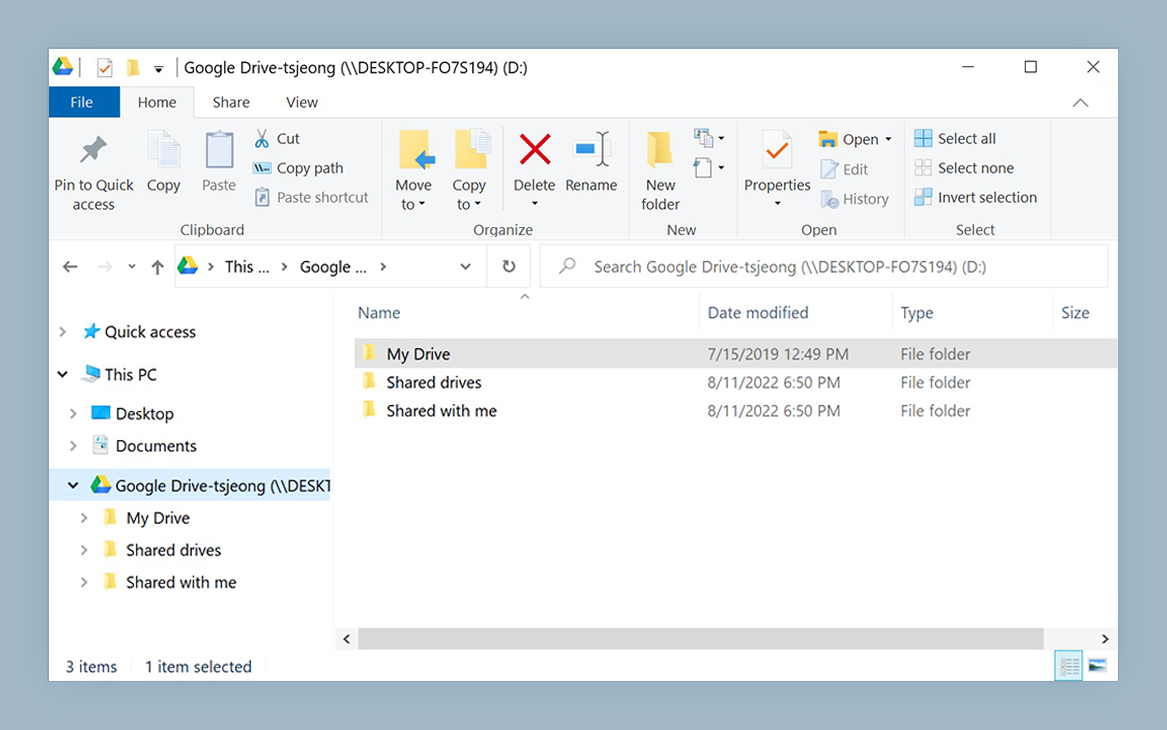
Now you can browse through your files in Windows explorer like a hard drive.